Create Your Own
Cocktail or Wine Ad
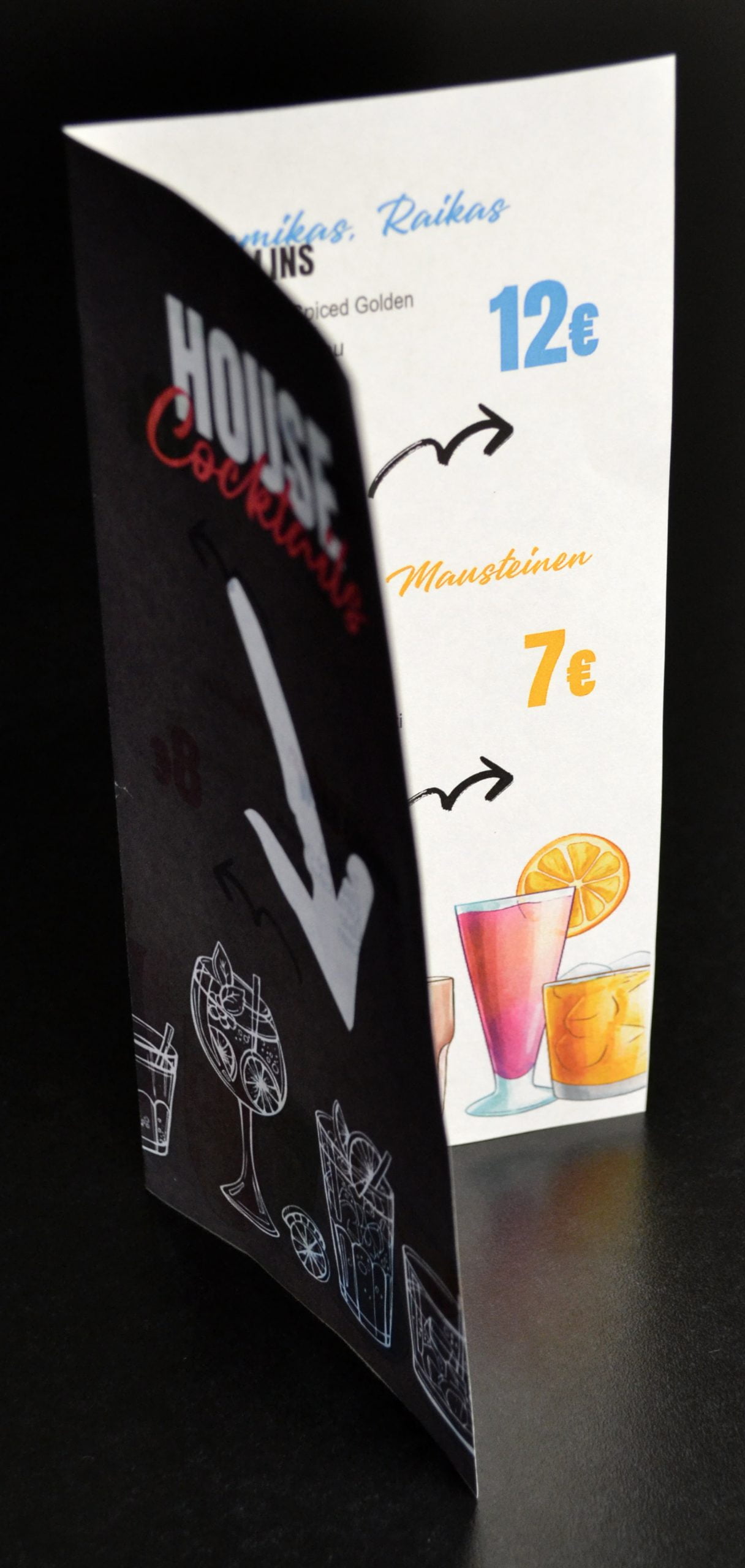
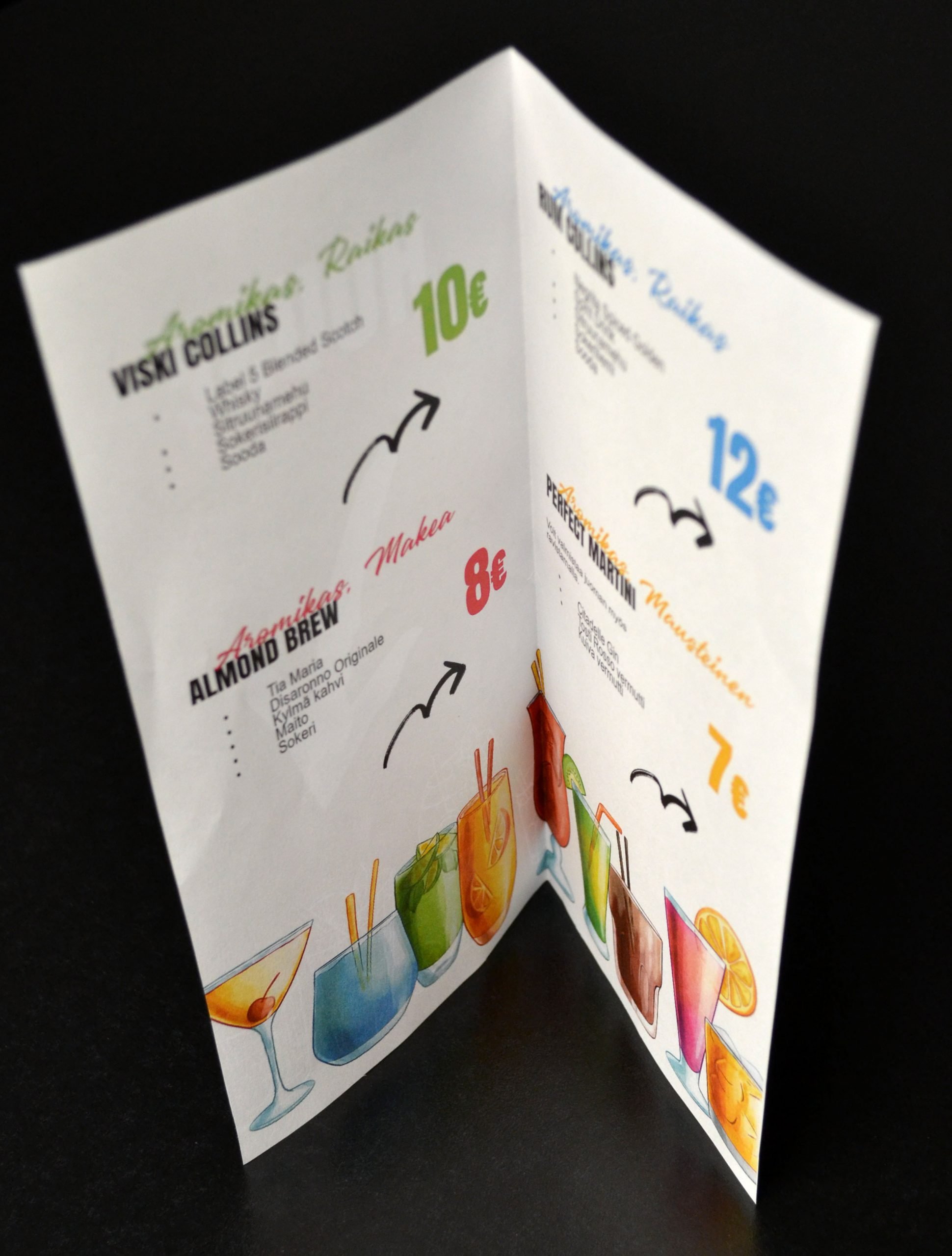
As our Horeca customer, you can take advantage of ready-made advertising material templates. You can select products from the range for your wishlist or even cocktails from the recipe bank and create PDF files from them. This makes it easy to create, for example, stylish wine and cocktail lists from our products yourself. You can print them yourself right away if you like. Easy: you don’t need a graphic designer or layout skills!
On this page you’ll find instructions for creating ads!
Single Product Ad (A4)

1. Find the product you want using product search
You can conveniently create an A4 ad directly from the product card. You can create ads for wines and spirits.
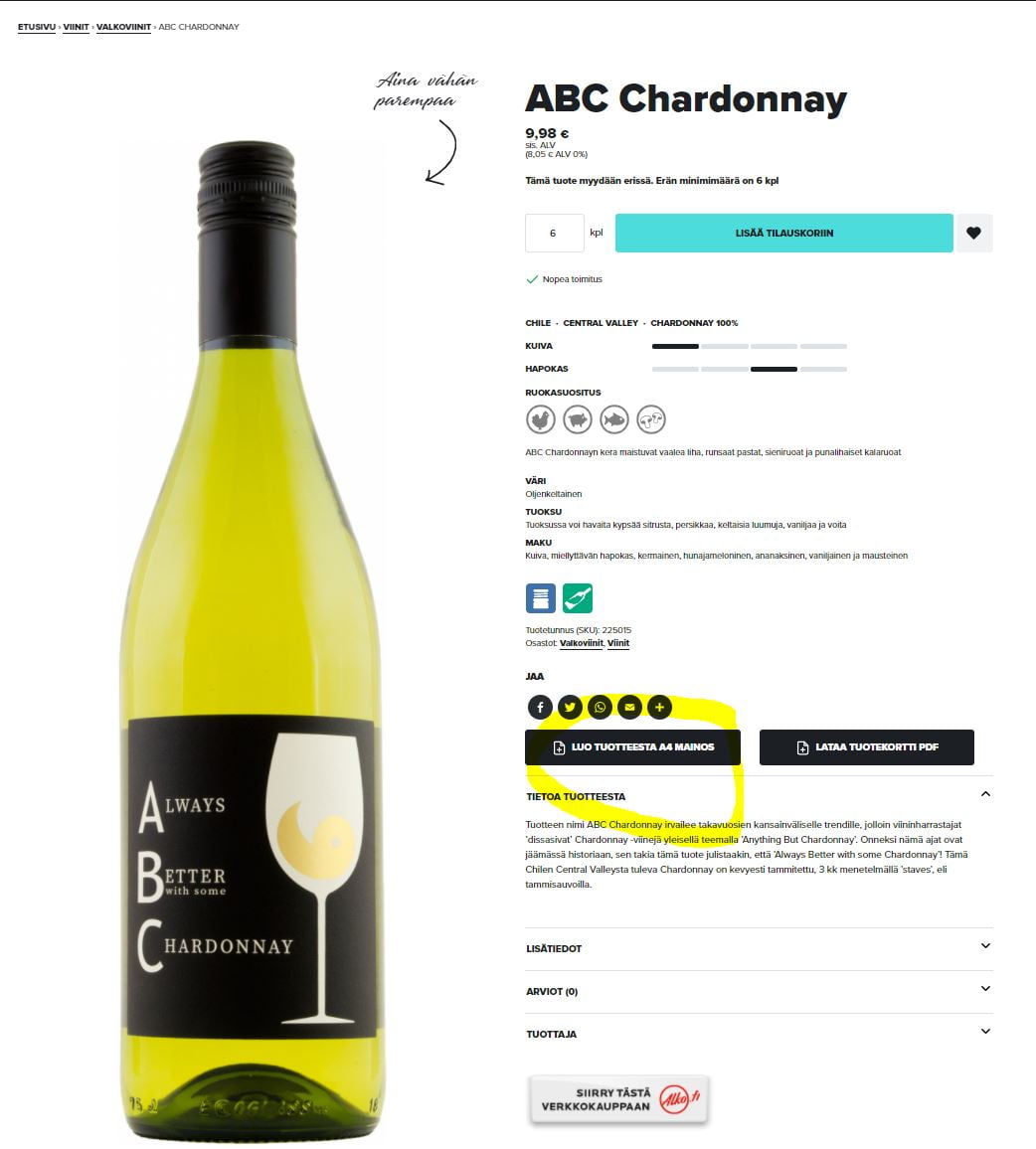
2. Select background image
Select your desired background image with the mouse.
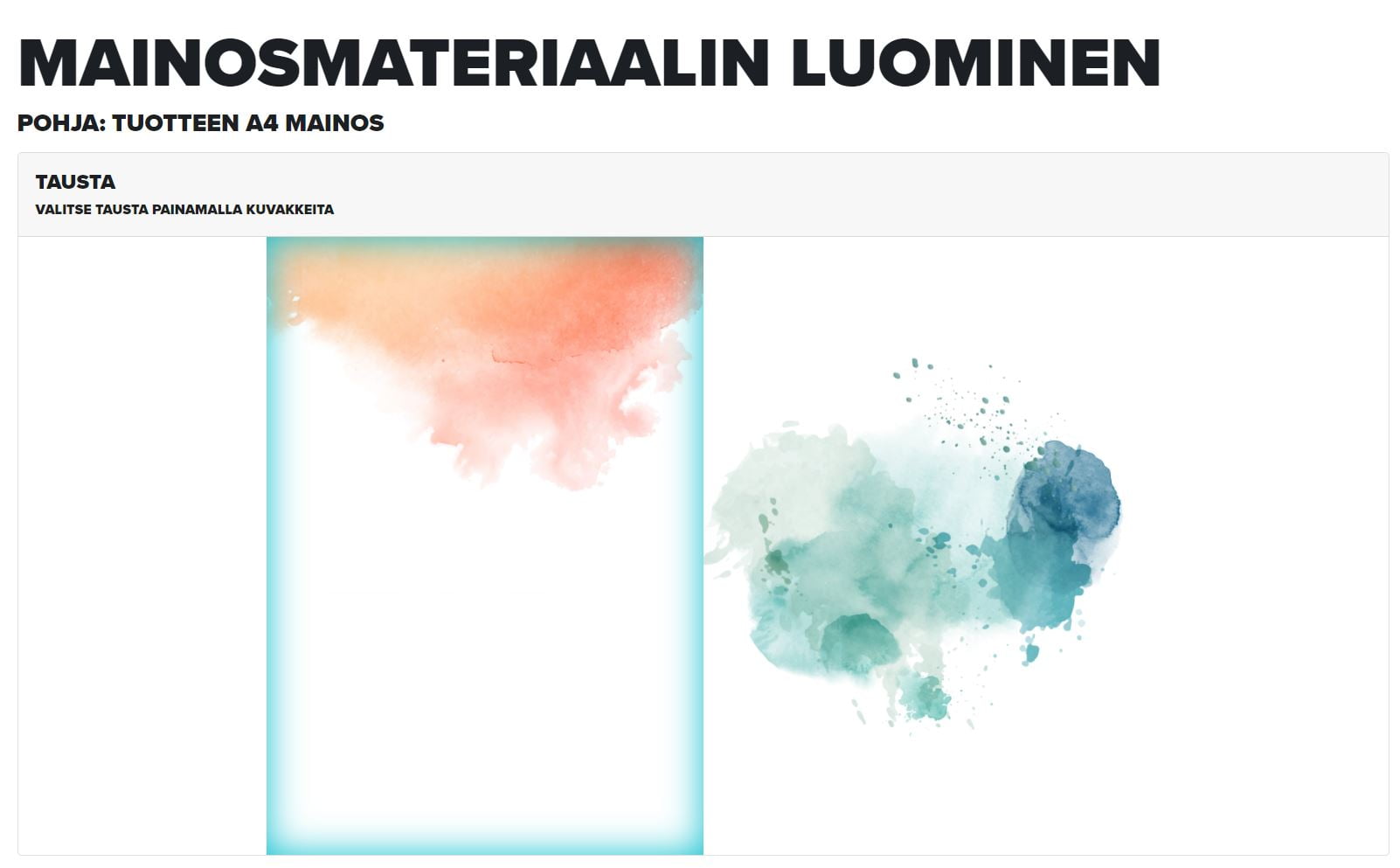
3. Enter price
Enter your desired price or prices. In the “Price 1. Title” field, you can enter the larger price bubble size information (for example “btl”) and in the next field the selling price for that bottle (for example “20”). The “Price 2” field works the same way, but its information appears in the smaller price bubble.

You can also just enter, for example, the bottle price and unit, in which case the second price bubble will disappear from the finished ad.
4. Create PDF
Click “Create PDF” and save it to your computer. Now you can print or send the material to print.
5. Printing
Make your desired selections for printing. The image quality is sufficient for A4 size. You can also print smaller, A5-sized ads if you wish.
Done!

Cocktail Ad
1. Find the cocktail you want
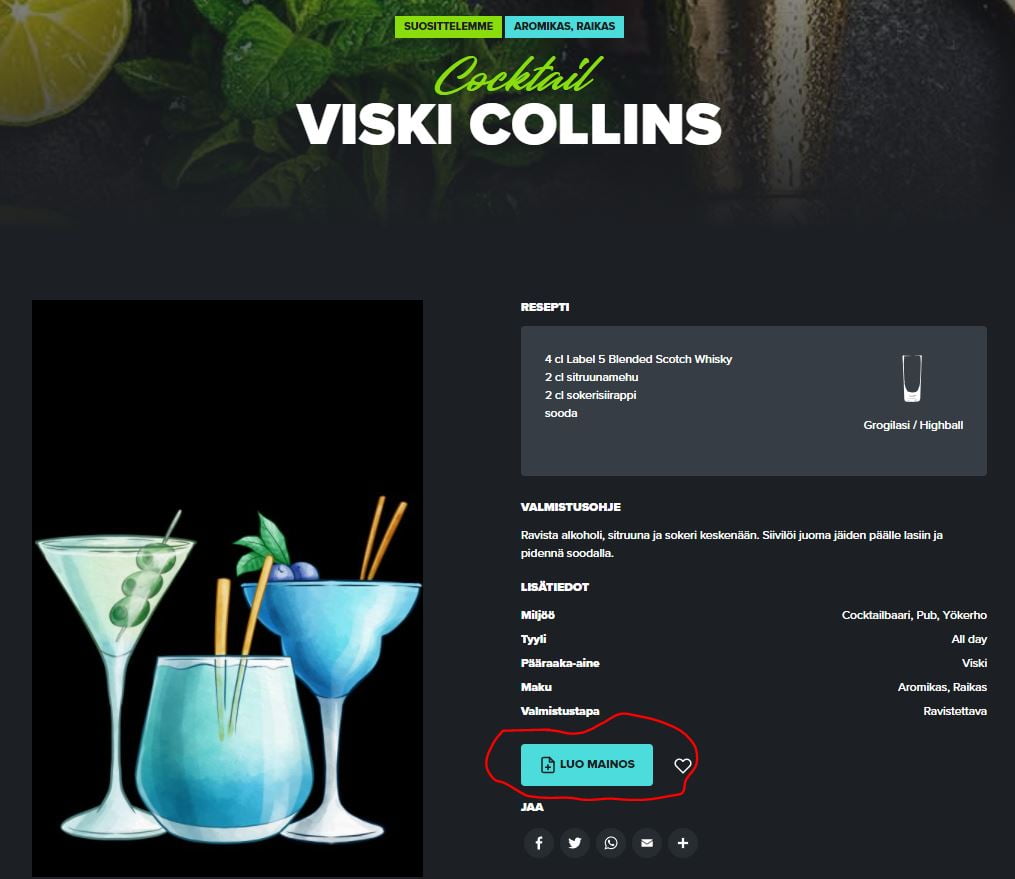
Browse and search for your desired drink in the cocktail recipe bank and open that drink. Click “Create ad”.
2. Select background image
Select your desired background image with the mouse.

3. Enter price
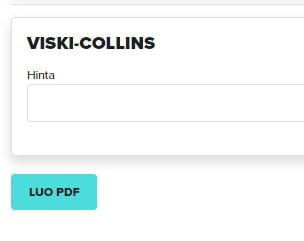
Enter your desired price and click “Create PDF”.
4. Save PDF
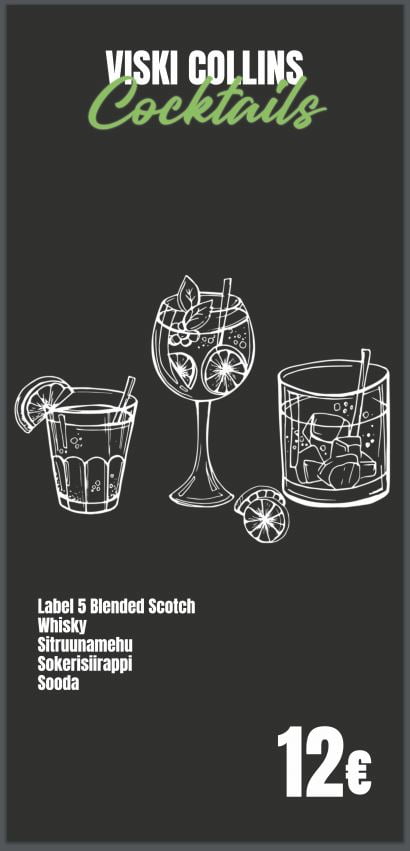
After saving the finished PDF ad, you can send it to print or print it yourself.
5. Print
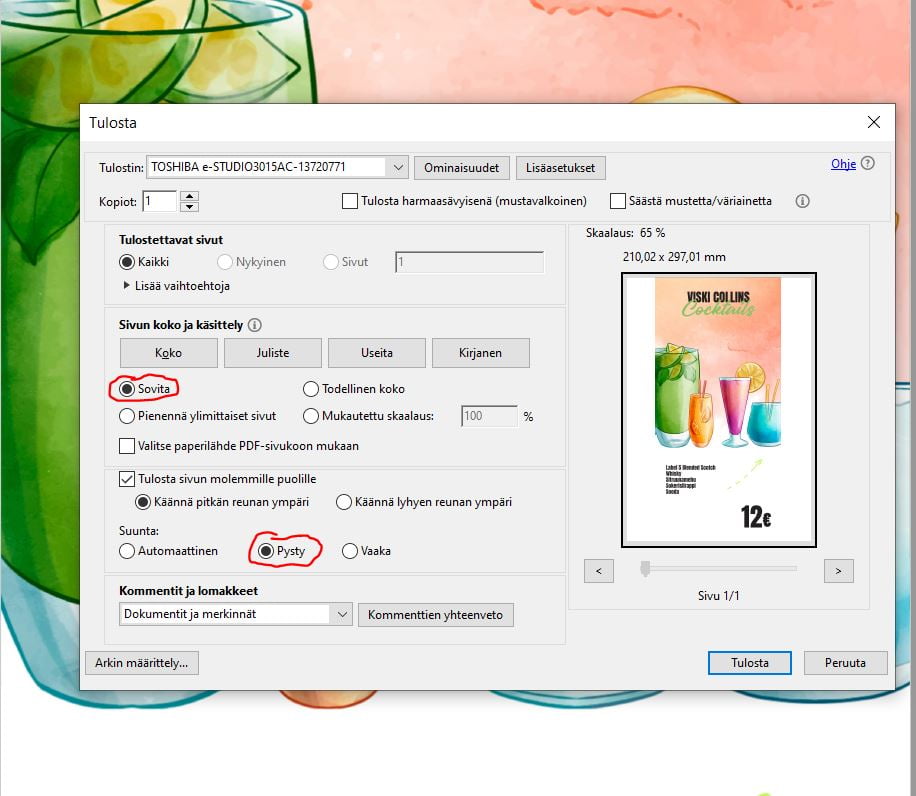
When printing, you can determine yourself what size to print the ad. For example, by first selecting “Fit” and then the “Landscape” or “Portrait” option, the print size of the ad will change slightly.

Done!
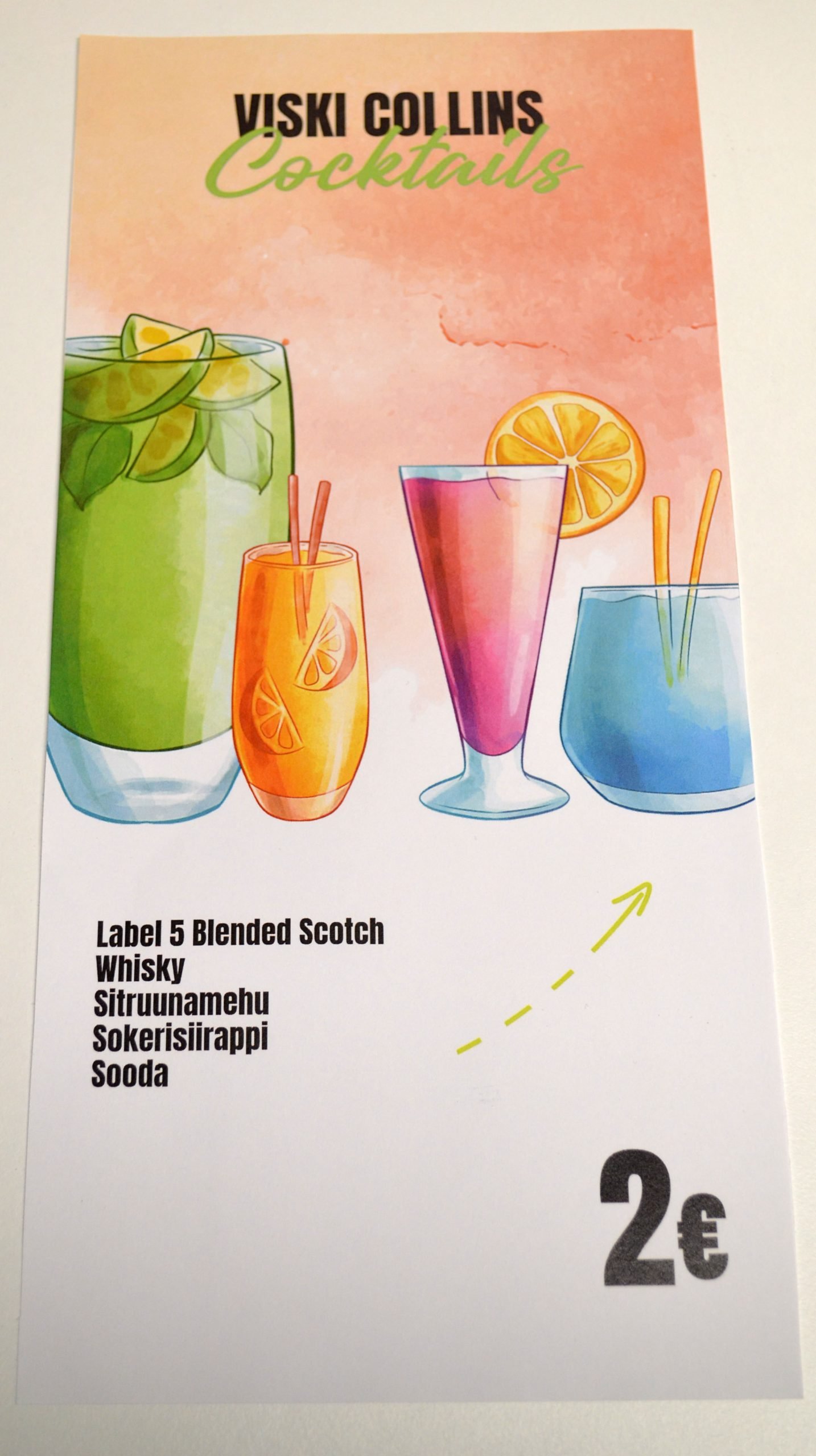
Cut off the excess white borders. The ad is ready.
Wine List (A4)
1. Add wines to wishlist
You can add your desired wines to the wishlist by clicking the heart symbol. You can add the product to the wishlist directly in the product search view or on the product card.

2. Go to wishlist
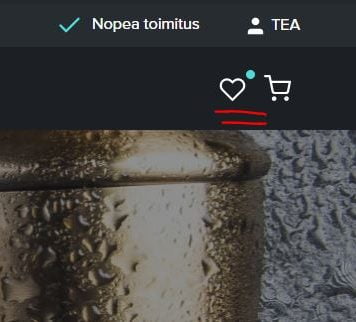
You can access the wishlist from the heart symbol located in the top bar next to the shopping cart. Now you can see all the wines you have selected for the wishlist.
Please get all your desired products ready in the wishlist. When creating advertising material, you can easily remove extras, but you cannot search for additional products during ad generation.
3. Start creating the ad
Even if you are not logged in as a Norex Pro customer, you can still create a wine list.

4. Select your desired background
Select your desired background image with the mouse.

5. Enter requested additional information
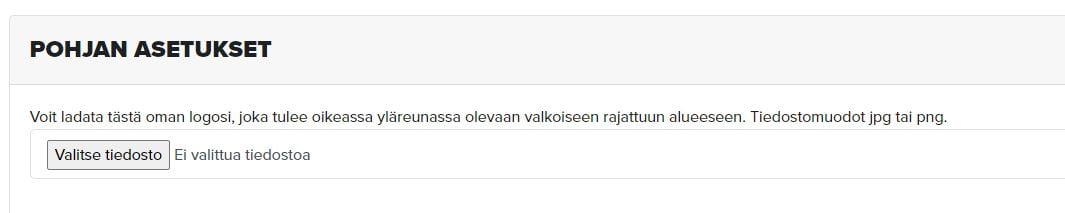
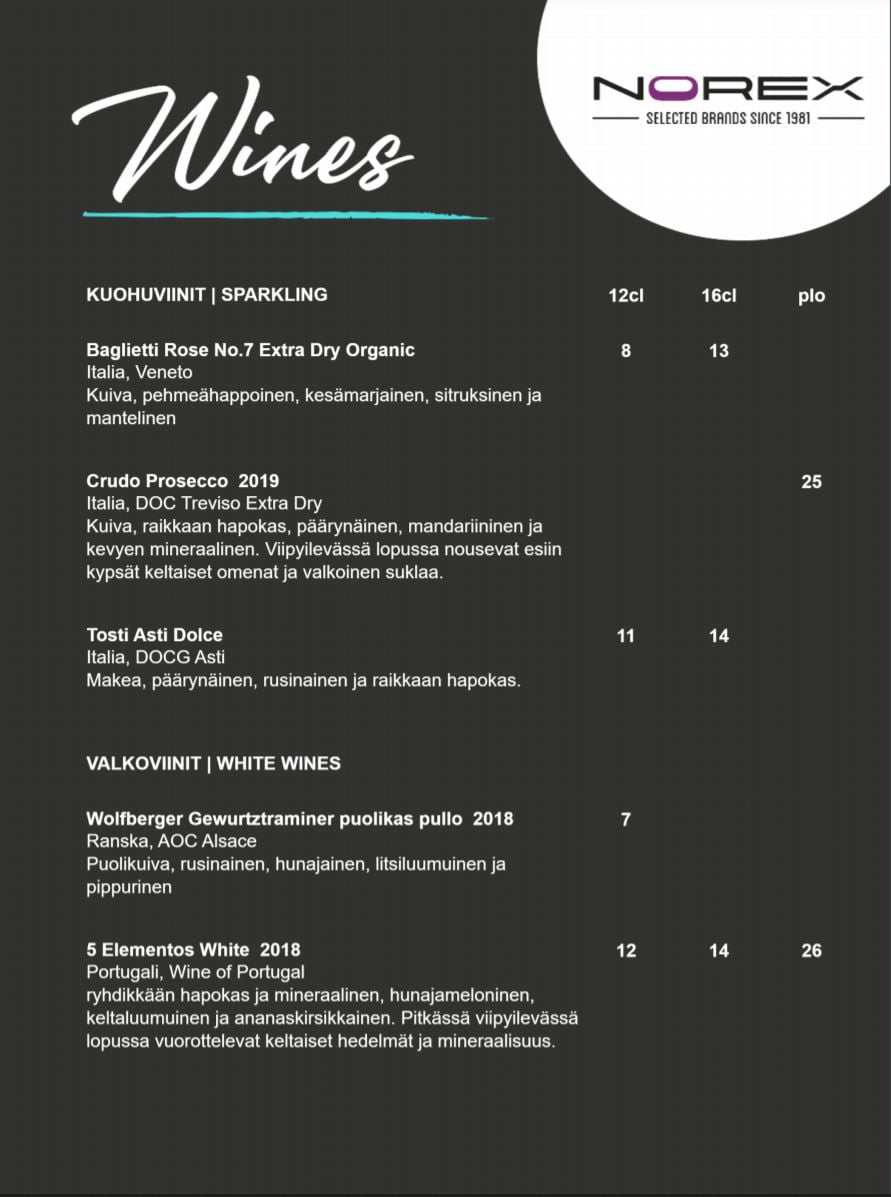
You can upload your own logo to the wine list if you wish, which will appear in the upper right corner of the wine list.
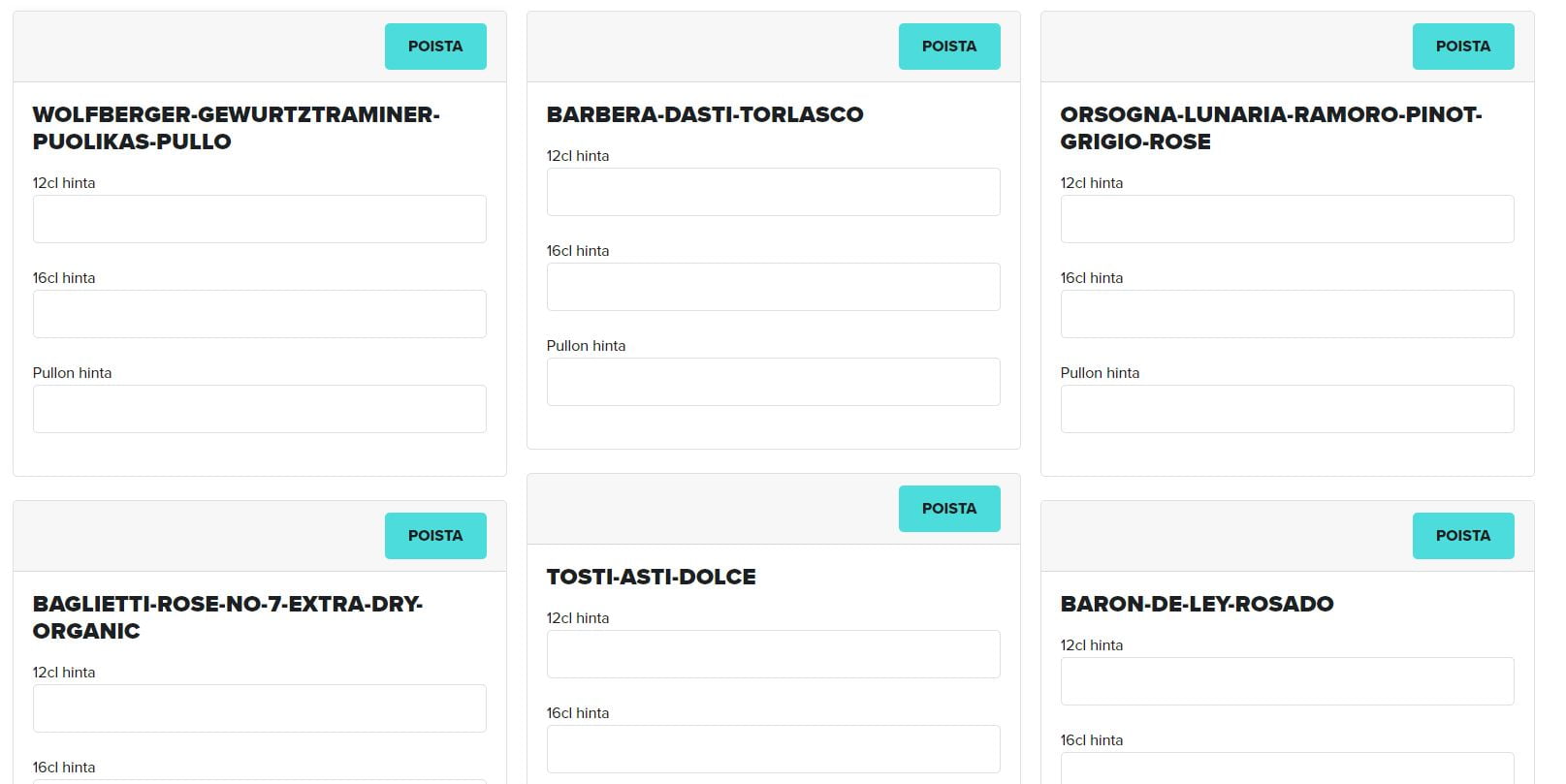
6. Enter your own prices
You can give wines the following prices: 12cl, 16cl or btl. If you don’t give any wine a 16cl price, for example, the heading will also be removed from the finished wine list.
7. Finished material
Finally, click “Create PDF” and save to your computer for printing or print production.
8. Printing
The wine list is designed for A4 size.
Done!
Cocktail Booklet
1. Add cocktails to wishlist
You can add your desired cocktails to the wishlist by clicking the heart symbol in the cocktail recipe bank.
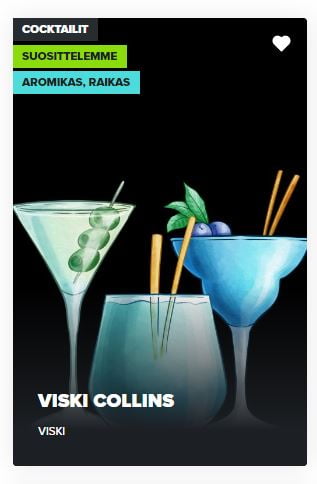
Please note that for legal reasons, to access the cocktail recipe bank you must be logged in as a Norex PRO customer. Log in or register here.
2. Go to wishlist
You can access the wishlist from the heart symbol located in the top bar next to the shopping cart. Now you can see all the cocktails you have selected for the wishlist. The wishlist shows wines first and then cocktails.
Remember to get all your desired products ready in the wishlist. When creating advertising material, you can easily remove extras, but you cannot search for additional products during ad generation.
3. Start creating the cocktail booklet

The cocktail booklet is optimal when you select 1-4 drinks. Four drinks fit on one spread. The next number that works without empty white spaces is 12 drinks.
4. Select your desired background
Select your desired background image with the mouse.

5. Enter requested additional information
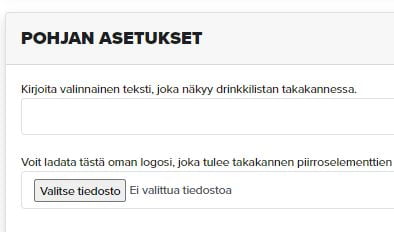
You can add a small amount of text that will appear on the back cover of the booklet. You can also add a logo below the text, which should be in png format and transparent, i.e. without a white background.
6. Add prices
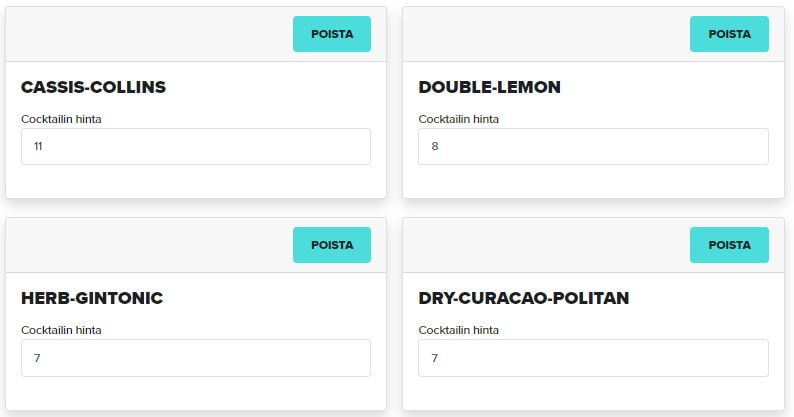
Enter your desired prices for the drinks. You can still remove drinks at this point if there are extras left on the list.
7. Finished material
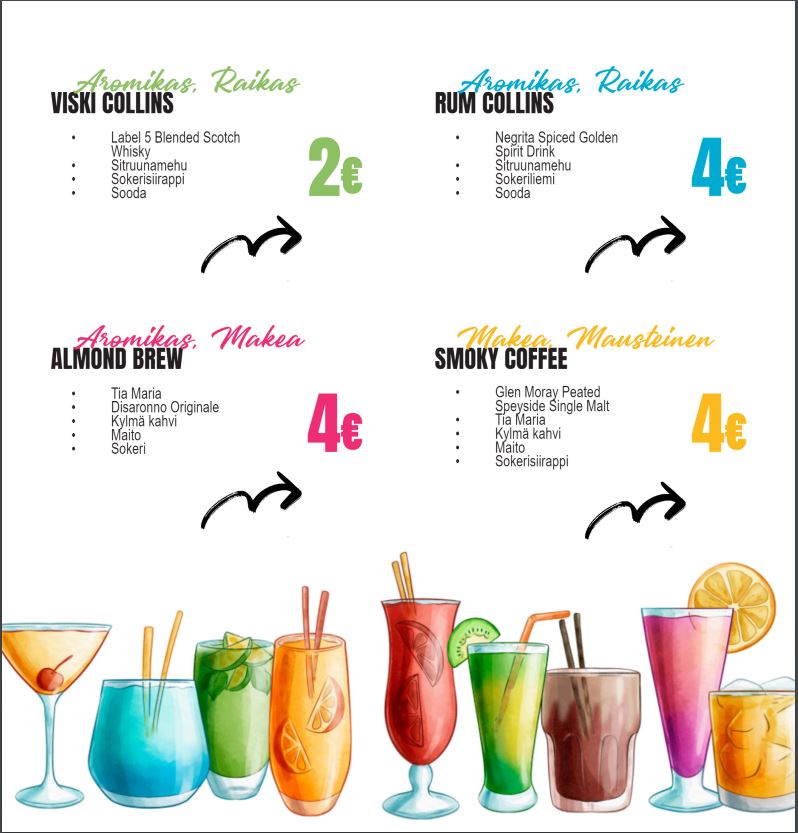
Finally, click “Create PDF” and save to your computer for printing or print production.

8. Printing
If you print yourself, select “Fit”, “Print on both sides of page” and “Portrait” from the settings.

Done!
Cut off the excess white and the booklet is ready.